Most “bad Wi-Fi” problems aren’t about speed plans—they’re about router placement. A router in the wrong spot can create dead zones, unstable video calls, and random buffering even if your internet is fast.
This guide gives you practical placement rules + quick tests you can do in minutes to find the best spot in your real home.
The goal (what good placement looks like)
You want:
- Strong signal where you actually use devices (bedroom, couch, desk)
- Fewer drops when moving between rooms
- Stable streaming and video calls
- Minimal interference from walls and appliances
The 5 best placement rules (that work in real homes)
1) Put it in the “center” of your home (not near the modem if the modem is in a corner)
Wi-Fi spreads out like a bubble. If the router sits at one edge of your home, half the signal “wastes” itself outside your living space.
Best practice: the router should be as close as possible to the middle of the area you want covered.
If your modem must stay in a corner, consider a longer Ethernet cable so the router can move to a better spot.
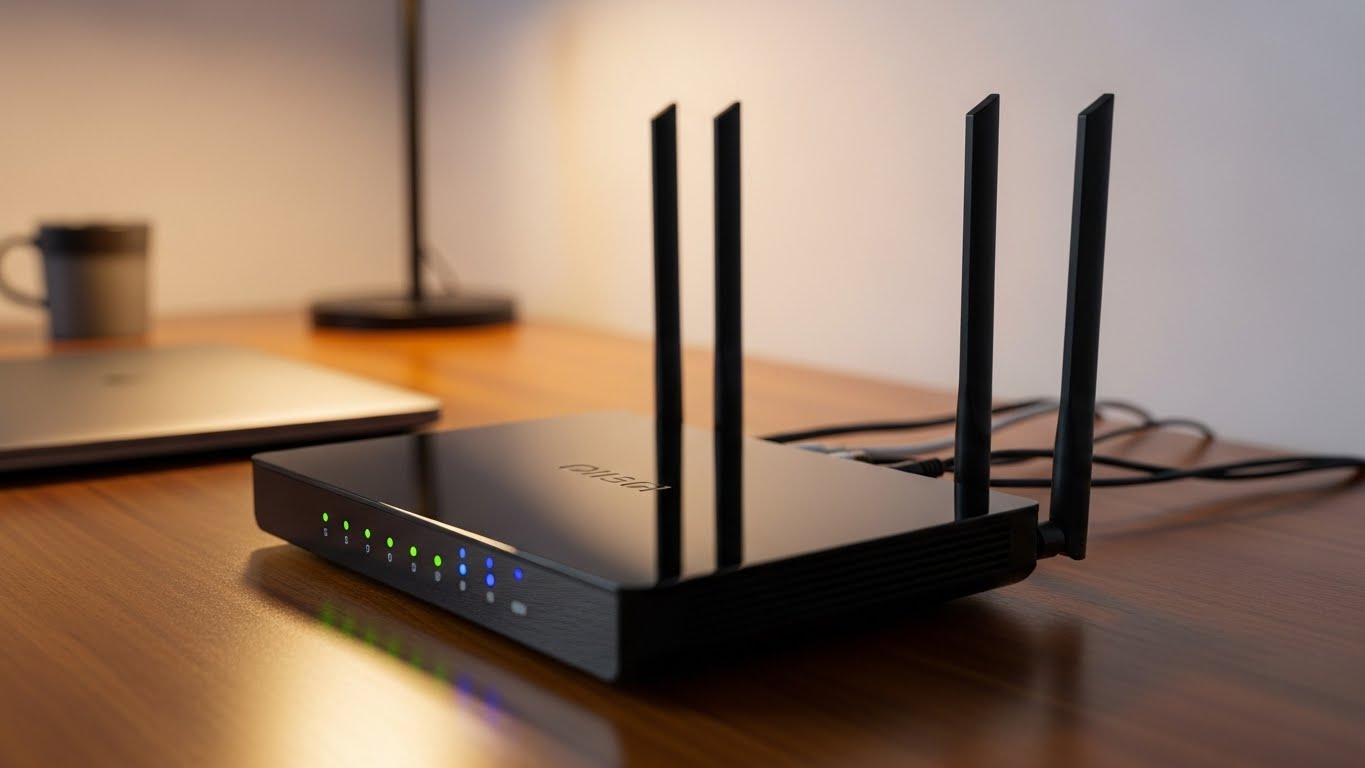
2) Place it up high and in the open
Routers do better when they’re:
- on a shelf
- on a table
- mounted high
Avoid:
- inside cabinets
- behind TVs
- inside entertainment centers
- on the floor
Walls and furniture absorb signal—especially at 5GHz.
3) Avoid “signal killers” (these matter more than people think)
Keep the router away from:
- microwaves
- refrigerators and large metal appliances
- mirrors (big mirrors can reflect signal)
- fish tanks (water absorbs Wi-Fi)
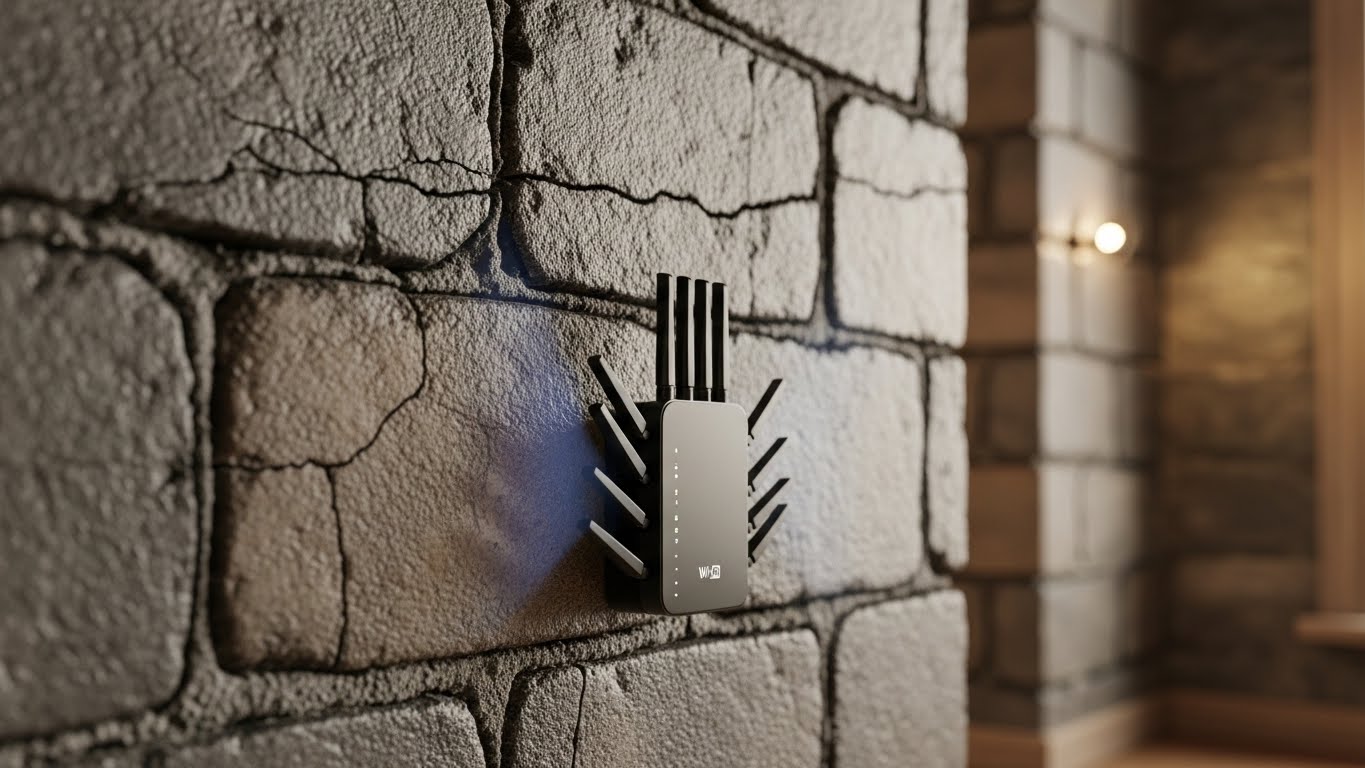
- thick concrete walls and stairwells
- cordless phone bases (older homes)
If you’re in an apartment, also avoid placing it right against the wall shared with multiple neighbors—more interference.
4) Use 5GHz for speed nearby, 2.4GHz for reach through walls
- 5GHz = faster but shorter range
- 2.4GHz = slower but better wall penetration
You don’t have to force devices manually if your router supports smart band steering, but it helps to understand why the bedroom may struggle on 5GHz.
5) Face the antennas correctly (if your router has external antennas)
Quick rule:
- If you have multiple floors: aim some antennas vertical and some slightly angled
- For single-floor homes: mostly vertical is fine
This helps signal spread in more directions.
Quick tests (no special tools required)
Test A: The “2-minute walk test”
- Stand near your router: load a webpage or start a short video.
- Walk to the problem room.
- Note:
- Does it buffer?
- Does the device jump to 2.4GHz?
- Does signal drop suddenly near a certain wall?
If it dies in one specific spot, that wall/material is likely the issue—move the router to change the angle/path.
Test B: The “speed vs stability” test
In the problem room:
- Run a speed test once.
- Then open a video call test (or stream a 4K video) for 3–5 minutes.
Why: a Wi-Fi setup can show “good speed” but still be unstable. Stability matters more than peak speed.
Test C: The “router relocation trial” (best test)
Try these three positions for 10 minutes each:
- Current spot
- A more central spot
- A higher, more open spot
You don’t need perfection—you’re looking for a noticeable jump in reliability.
Real-world placement examples (common layouts)
Apartment: modem by the front door (worst-case corner)
Fix: run Ethernet from modem → router placed closer to center
If you can’t run Ethernet visibly, try routing along baseboards or using flat Ethernet cable.
Long hallway apartments
Place the router at the hallway midpoint (not at one end). Hallways can act like signal corridors.
Two-story home
Place the router:
- upstairs if most usage is upstairs, or
- near the ceiling on the first floor if you need both floors covered
Avoid placing it at the far end of one floor.
Home office in a back corner
If your router is far away, you’ll get the most improvement by:
- moving the router more central, or
- using mesh / wired access point for that corner
Simple “upgrade path” if placement isn’t enough
If you’ve done good placement and still have dead zones:
- Add a mesh node (best overall for multiple dead zones)
- Add a Wi-Fi extender (okay for one room, placement-sensitive)
- Wired backhaul (Ethernet or MoCA) for the most stable performance
Troubleshooting (fast fixes)
Problem: “Wi-Fi is great near router, terrible in bedroom.”
→ Move router more central; rely on 2.4GHz for that room; avoid placing router behind TV/metal.
Problem: “Random drops at night or busy hours.”
→ Likely interference. Try changing channels or using a less congested band (5GHz/6GHz if available).
Problem: “Good speed test but video calls stutter.”
→ Stability issue. Router placement + interference matters more than speed.
My best practical advice (if you only do 3 things)
- Move the router higher and more open
- Move it toward the center using a longer Ethernet cable
- Keep it away from metal + microwaves + cabinets
That solves the majority of home Wi-Fi complaints.